Getting Started
Creating a project
To create a new project select the New button in the projects view.
You will also be presented with the option of creating a new project during import, so you can skip creating one first if you prefer.
The project creation dialog will ask you to specify a name and a creator for the project, as well as a range base, to indicate which geographic species distribution dataset you want to use for this project.
CH Alphahull is suited for projects in Switzerland, Europe Alphahull and Europe MCP for the rest of Europe.
Importing Data
Opening Data from earlier versions of BatScope 4
BatScope 4.2 should open workspaces from earlier versions of BatScope 4 without problems.
Note
If in the open workspaces dialogue you see the text FORGET AND OPEN AGAIN in the square brackets behind a file name, instead of a PostgreSQL version 9.6 or 10, then do exactly that: Mark the workspace, press the Forget button and then the Open button to navigate to the location of the workspace again.
Importing from Source Data
Select Import from the File menu.
You now have a choice of import methods:
BATLOGGER SD-Card - for data in the BatLogger format
Batcorder Importer - for data in the Batcorder format
Generic Import - for directly importing WAV files
Select the desired import method and in the next screen, Browse to the location of the data to be imported. After selecting a folder, the file tree of the selected folder will be scanned for valid data, which might take a while depending on the amount of data to be imported.
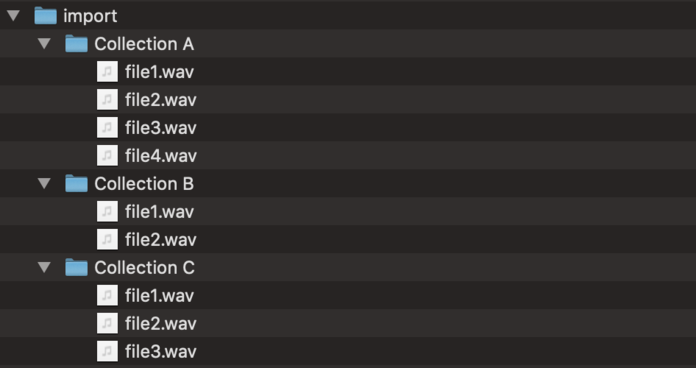
Figure 1 A possible hierarchy of data to be imported.
Next, the found data will be presented, grouped into the collections that will be created. This grouping is based on the filesystem hierarchy: the names of the collections are constructed from the paths to the data. Here you can select which collections should be imported into your project.
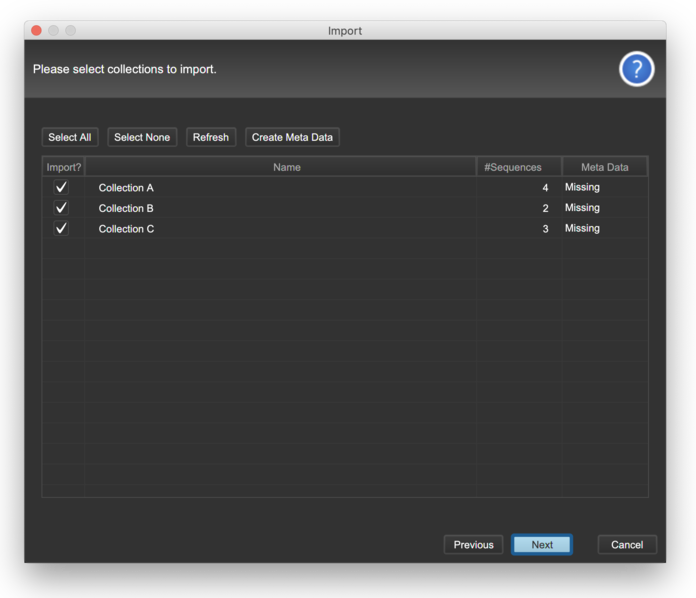
The Batcorder Importer additionally displays if valid metadata are available (LOGFILE.TXT), and also offers to potentially generate missing ones.
The Generic Importer also allows you to additionally create metadata files, which will then be imported together with the WAV files.
To do so, press the Create Meta Data button. A CSV file will be generated in each folder containing WAV files. These files contain a header line, a first example line to illustrate the format required and then a listing of all WAV files found in the folder.
Header |
Example |
Details |
|---|---|---|
File |
example |
WAV filename |
Name |
Example Name |
Sequence name |
Notes |
Note |
Comment |
Timestamp |
28.02.2014T04:42 |
Recording time |
Temperature |
10 |
Air temperature |
Recorder |
Sample Recorder |
Recording device |
Serial |
SAMPLESERIAL02 |
|
Satellites |
3 |
GPS data |
HDOP |
1.5 |
|
Latitude |
47.3635332 |
|
Longitude |
8.4542416 |
|
Altitude |
1115.1 |
|
Verification 1 |
Pipistrellus pipistrellus |
Species verifications |
Verification 2 |
Myotis myotis |
|
Verification 3 |
Nyctalus sp. or Myotis sp. |
Edit these files to set the metadata for the sequences. You can use a plain text processor or a spread sheet program, just make sure that you keep the format of the example line and that no special characters are added. Save the files and click Refresh to reload the metadata status.
Note
Separator value in the csv file must remain , not ;
Finally, in the next step, select the project you want to import the collections into, or create a new one.
When using the Generic Importer you will be asked to specify the speedup factor, which is used to correctly import audio files that have been slowed down by the recording device. For example, if your device has slowed the recorded files by a factor of 10 to make bat calls audible, you would enter 10. Leave the value at 1.0 if your WAV files have not been slowed down.
Note
Long recordings (> 10 sec) will be split during import. Sub-sections will have added an increasing numeric name extension xyz_0001, xyz_0002 etc. The splitting allows for faster display of the sequence’s spectrograms (real-time calculation!) when scrolling through the sequences table.
Warning
By default the first channel of a recording will be considered for importing, thus connect your microphones accordingly before recording in the field. However, in the Generic Import an appropriate channel selection is possible, together with an optional slowdown factor of recordings. BatScope will ‘speed up’ these recording accordingly during import.
Importing Data from BatScope 3
BatScope 3 was only available for Macs and only runs on macOS up to version 10.11.6 (El Capitan). Thus for importing old workspaces, you will need a machine running no later operating system. It must have the drive connected, which holds the files contained in BatScope 3, as these will be copied over to a BatScope 4 workspace!
Select BatScope 3 Import from the File menu.
Browse to the BatScope 3 application file that contains your data. The corresponding disks where your BatScope 3 projects reside must be mounted!
BatScope 4 will scan the BatScope 3 application and display an overview of the projects and collections found. Select which projects and collections you would like to import and provide new names if desired.
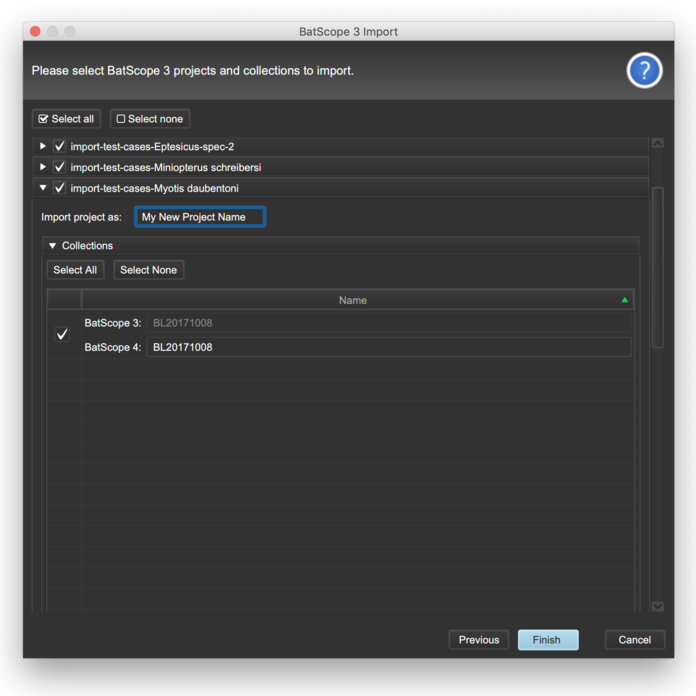
Figure 3 Selecting and renaming projects and collections from BatScope 3.
Note
When importing from BatScope3, projects already imported will be marked with a white flash.
Exporting Data
Data can be exported at each of the four levels of the BatScope data hierarchy. First, select the items you wish to export in the appropriate view. Then, select Export from the File menu. Choose the level at which you want to export data and then the exporter you would like to use.
All levels down to Sequences provide a Generic Exporter, which exports metadata in the format recognized by the Generic Importer described above. The Generic WAV Exporter does the same, but will additionally exports the WAV files. The result of this exporter can therefore be used directly with the Generic Importer.
The other export options are:
- Collections
KML Exporter - will export a KML file containing the recording locations of the Sequences within the selected Collections for display in Google Earth.
- Sequences
CSCF/KOF/CCO - will export a file compatible with the databases of CSCF and KOF and CCO of the Fledermausschutz CH. This will not export sequences that have multiple verifications, even if they are selected!
Calls
Only verified sequences allow to export calls
Calls - exports all physical parameters, as well as metadata such as project, collection, sequence, hash of the WAV file and the species and call type the call was verified as.
Learning Base - exports all physical parameters, as well as the species and call type the call was verified as.