Filtering
In the Sequences View and the Calls View you can interactively build filtering queries by adding filter blocks to the chain at the top of the window.

Figure 5 Example of a filter chain that will show all sequences that are no more than 5 seconds long but have 20 or more calls.
Adding additional blocks to the filter chain will show records matching all criteria. Filters in the same block will show records matching any criteria in the block.
To remove filters from the chain, press the X next to the filter.
After defining a filter, you will get an indication of how many results the filter will return when applied.
Press Apply button to apply the defined filter to the records.
Press Restore to undo changes made to the filter chain since last applying the filter.
Press Clear to reset the filter to the initial empty chain.
Tip
If the Fix/Release button is toggled on (by pressing Fix), your defined filter will be preserved when switching between the Sequences and Calls views.
Count estimates
Batscope shows the number of results for every applied filter. The number in blue is the number of items that are currently selected and match the applied filter. The number in green is the number of activated status items that match the current filter. The third number is the number of items that match the current filter. The last number is the total number of items present in the workspace.
Counting the number of items can be an expensive operation for the underlying PostgreSQL database. To save resources, the values are estimated when retrieving an accurate count would take a long time. If an accurate answer is needed, one can always press the the reload button next to the number to trigger an accurate count.
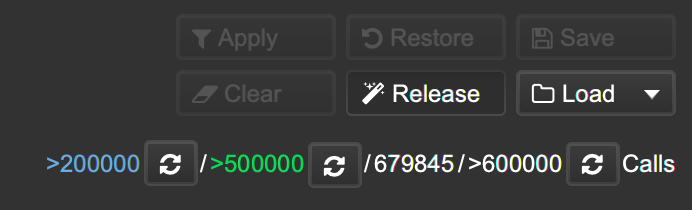
Figure 6 Example of estimated row counts. To retrieve the correct amount of rows, click the reload button.
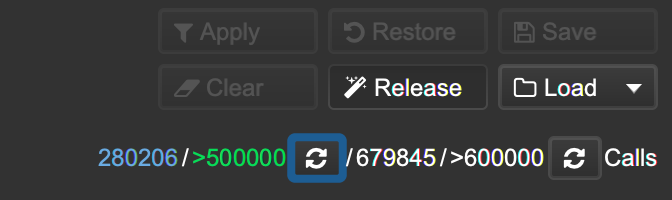
Figure 7 The reload button for the blue number has been clicked, the count estimate is replaced with the correct row count.
Saving Filters
Once a filter has been applied, it can be saved for later retrieval using the Save button.
Note
These filters will be saved with the species-set in your user settings directory.
Use the Show Species-Sets Configs button from the About BatScope 4 dialog to access these files directly.
Tip
You can save a filter in a hierarchy by adding slashes to its name when saving.
Example: saving your filter as My Group/My Filter will save it as My Filter in a folder called My Group.
You can also organize existing filters into such a hierarchy by moving their files into folders accordingly. Use the Reload All option from the File menu to reload the filters afterwards.
Saved filters can be recalled with the Load menu. Here you can also delete previously saved filters.
Tip
You can exchange saved filters with other BatScope 4 users by copying the corresponding XML file from the filters in your species-set directory into theirs.